Setting up Neovim for iOS Development
It started with my neurologist handing me a piece of paper. He called it a “migraine diary”.
It was obviously a photocopy of a photocopy of, most likely, a photocopy.
“Just mark when you have some symptom and we’ll see if it correlates with anything,” my doctor said.

So I set off to build a better tool for myself: Dots Journal.
Would a Google Sheet have worked? Sure. But I wanted to log something quickly on my phone. And I wanted it to be super simple, clear, and have minimal design. Nothing like this existed.
So I set out to get building. My background is in web dev and systems engineering. I’d done mobile dev on iOS and Android in the 2010s, but I’d moved on to having a Neovim and tmux workflow. I wanted to stay with what I was familiar with. Naturally, I reached for React Native.
React Native is great at many things. But spreadsheets apparently isn’t one of them. So I pivoted to Swift and SwiftUI. I was going native, baby.
But the years of muscle memory I’d built up orchestrating my tmux panes,
wrangling text in Neovim, having keybinds for managing git… It just wasn’t
translating well to Xcode. The built-in vim bindings fell woefully short. What
do you mean I have to hit Cmd+S to save?? I want my :w to work, dangit!
Thankfully, a lot of work had been done to integrate Neovim with xcodebuild.
Maybe there was a way that I could have my cake and eat it, too. As I’d soon
find out, you can indeed get about 90% of the way there, shipping iOS apps from
Neovim.
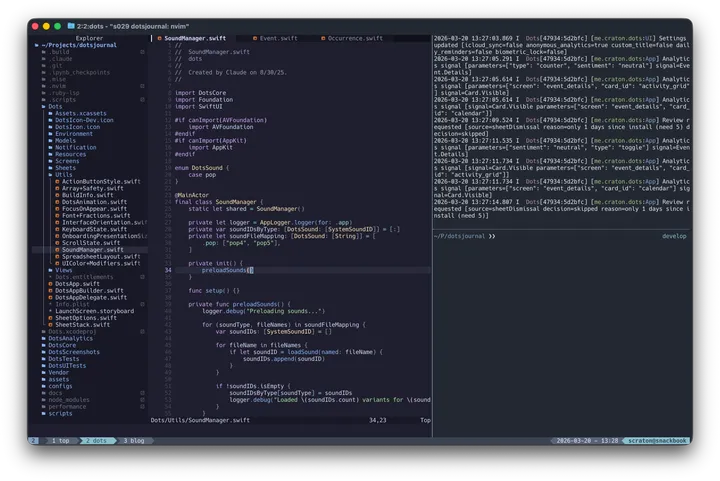
The Setup: What Makes This Work
I assume you’ve already got Neovim setup the way you like it. A plugin manager like lazy.nvim is also required. While some of this works on Linux and Windows, to actually build and run iOS or macOS apps you will need to be running macOS.
Now we can start by getting Neovim to understand Swift.
sourcekit-lsp
Adding language support to Neovim starts with the Language Server Protocol (LSP). Xcode ships with one out of the box: sourcekit-lsp. No need to install it, it should just work.
We just need to define a sourcekit_lsp.lua file in our ~/.config/nvim/lua/lsp/
folder. Let’s walk through setting that up.
We need to find the sourcekit-lsp binary itself. You could just go with
expecting in PATH. I prefer my configs to be more portable. So I search the
various spots it is likely to be installed: via Xcode, Homebrew, etc.
-- Look for sourcekit-lsp in common locations
local function find_sourcekit_lsp()
  local potential_paths = {
    -- Xcode toolchain
    '/Applications/Xcode.app/Contents/Developer/Toolchains/XcodeDefault.xctoolchain/usr/bin/sourcekit-lsp',
    -- Standard locations
    '/usr/local/bin/sourcekit-lsp',
    '/usr/bin/sourcekit-lsp',
    -- Homebrew
    '/opt/homebrew/bin/sourcekit-lsp',
  }

  for _, path in ipairs(potential_paths) do
    if vim.fn.executable(path) == 1 then
      return path
    end
  end

  -- Check if it's in PATH
  if vim.fn.executable('sourcekit-lsp') == 1 then
    return 'sourcekit-lsp'
  end

  return nil
end
Then we just lookup the command. If not found, bail from this Lua config. Neovim won’t have Swift support for this session.
local cmd = find_sourcekit_lsp()
if not cmd then
  return
end
Next, we return the core LSP configuration which Neovim expects from this module.
cmd- where oursourcekit-lspbinary is located.filetypes- which files this LSP is applicable.root_dir- tells the LSP the root of our project. For this, we look for common files placed in the root of a project. This helps, in particular, if you work on Swift packages within a broader app.Package.swifttakes priority, so we can work on Swift packages within our main app’s bundle (e.g.DotsCoreversusDotsthe app).buildServer.jsonnext so xcodebuild integration works cleanly with the LSP*.xcodeprojand related are your standard Xcode project files
on_attachdisables diagnostics for generated interface files, which is super useful if you want to jump into system framework headers from your code and not get overwhelmed by tons of diagnostic noise.capabilities- declares client capabilities to sourcekit-lsp. Here we enabledynamicRegistrationfor file watching, which is arguably more efficient.
return {
  cmd = { cmd },
  filetypes = {
    'swift',
    'objc',
    'objcpp',
  },
  root_dir = function(bufnr, on_dir)
    local fname = vim.api.nvim_buf_get_name(bufnr)

    -- 1. Package.swift (SwiftPM projects - highest priority)
    local package_swift = vim.fs.dirname(vim.fs.find({ 'Package.swift' }, { upward = true, path = fname })[1])
    if package_swift ~= nil then
      on_dir(package_swift)
      return
    end

    -- 2. buildServer.json (Xcode Build Server Protocol)
    local build_server = vim.fs.dirname(vim.fs.find({ 'buildServer.json' }, { upward = true, path = fname })[1])
    if build_server ~= nil then
      on_dir(build_server)
      return
    end

    -- 3. Xcode projects
    local xcode_project = vim.fs.dirname(vim.fs.find(function(name)
      return name:match('%.xcodeproj$') or name:match('%.xcworkspace$')
    end, { upward = true, path = fname, type = 'directory', limit = 1 })[1])
    if xcode_project ~= nil then
      on_dir(xcode_project)
      return
    end

    -- 4. Git repository (fallback)
    local git_root = vim.fs.dirname(vim.fs.find({ '.git' }, { upward = true, path = fname })[1])
    if git_root ~= nil then
      on_dir(git_root)
      return
    end

    -- 5. Generated interface files (sourcekit-lsp internal files)
    if fname:match('/sourcekit%-lsp/') or fname:match('%.swiftinterface$') then
      local interface_root = vim.fs.dirname(fname)
      on_dir(interface_root)
      return
    end

    -- 6. Fallback to file directory
    local fallback_root = vim.fs.dirname(fname)
    if fallback_root and fallback_root ~= '' then
      on_dir(fallback_root)
    end
  end,
  on_attach = function(client, bufnr)
    local fname = vim.api.nvim_buf_get_name(bufnr)

    -- Disable diagnostics for generated interface files
    if fname:match('/sourcekit%-lsp/') or fname:match('%.swiftinterface$') then
      vim.diagnostic.enable(false, { bufnr = bufnr })
    end
  end,
  capabilities = {
    workspace = {
      didChangeWatchedFiles = {
        dynamicRegistration = true,
      },
    },
  },
}
Jump-to-definition, autocomplete, diagnostics, etc should all work at this point. But we’re not integrating much with the Xcode toolchain yet.
The Bridge: buildServer.json
sourcekit-lsp is great for working with Swift, but it has no knowledge of
Xcode or how to work with Xcode projects.
Enter xcode-build-server. This
sets up a buildServer.json file which is crucial for getting sourcekit-lsp
and Neovim to work together. Xcode provides a build server (primarily meant for
CI servers) which xcode-build-server connects to via the CLI.
We just need to install some tools via Homebrew and pipx:
# xcode-build-server: the star of the show
# xcbeautify: beautifies Xcode CLI output
# pipx: Python package installer (for pymobiledevice3)
# rg, jq, coreutils: various utilities these projects depend on
brew install xcode-build-server xcbeautify pipx rg jq coreutils

# pymobiledevice3 allows controlling devices and simulators via CLI
pipx install pymobiledevice3
As our project changes, we’ll use xcode-build-server to refresh our
buildServer.json file.
We’ll manage this with a Neovim plugin later, but to get started, go to the root of your project and run:
# if you have a .xcodeproj:
xcode-build-server config -project *.xcodeproj -scheme <name>
# if you have a .xcworkspace:
xcode-build-server config -workspace *.xcworkspace -scheme <name>

# example from Dots:
xcode-build-server config -project Dots.xcodeproj -scheme Dots_iOS
You’ll need to use Xcode to build up the project or workspace files initially. In a follow-up post, I’ll discuss how this can be brought to the terminal using XcodeGen.
Building & Running: xcodebuild.nvim
xcodebuild.nvim is the
lynchpin of our Neovim setup which makes all of this possible. It wraps
xcodebuild and provides a clean integration with Telescope, inline build
diagnostics, keybinds for building & running, menus for managing devices, etc.
We’ll first need to install it as a Neovim plugin, depending on your plugin manager of choice. I prefer lazy.nvim.
{
  'wojciech-kulik/xcodebuild.nvim',
  ft = { 'swift' },
  dependencies = {
    'MunifTanjim/nui.nvim',            -- required: library used by xcodebuild.nvim
    'nvim-telescope/telescope.nvim',   -- optional: very useful fuzzy finder + list manager
    'nvim-treesitter/nvim-treesitter', -- optional: treesitter integration, for syntax highlighting and navigation
  },
}
That’s all you really have to do. But you’ll likely want to tweak its base config to do something more custom and specific to your workflow.
I’ve commented some specific changes I made in this next code section that you might find useful.
  config = function()
    require('xcodebuild').setup({
      logs = {
        -- Treat the build log as a special file type.
        -- We'll use this later.
        filetype = 'xcodebuildlog',
      },
      integrations = {
        -- Integrate with pymobiledevice3 (installed earlier)
        -- for device management from within Neovim
        pymobiledevice = {
          enabled = true,
        },
      },
    })

    -- Insert additional configuration as desired
  end
One really annoying quirk I ran into quite often was running a build, only to have its output open a split which hijacked my cursor. I’d think I’m editing some code, only to be trying to edit the build log.
We can fix that by using the special log filetype we set earlier and act on it.
    -- Take our special file type from earlier and
    -- prevent the logs split from hijacking file opens
    -- when we run a build
    vim.api.nvim_create_autocmd('FileType', {
      pattern = 'xcodebuildlog',
      callback = function()
        local win = vim.api.nvim_get_current_win()
        vim.wo[win].winfixbuf = true
      end,
    })
By default, the build results are just isolated in that split. Any errors or warnings don’t go anywhere. We can pipe them into the editor as diagnostics just like Xcode’s red squiggles.
    -- By default, xcodebuild results are just put in a split
    -- but this block will place any warnings or errors directly
    -- in the editor as diagnostics (like Xcode's red squiggles)
    local ns = vim.api.nvim_create_namespace('xcodebuild_diagnostics')
    vim.api.nvim_create_autocmd('User', {
      pattern = 'XcodebuildBuildFinished',
      callback = function()
        vim.diagnostic.reset(ns)
        local qflist = vim.fn.getqflist()
        local diags_by_buf = {}
        for _, item in ipairs(qflist) do
          local bufnr = item.bufnr
          if bufnr and bufnr > 0 then
            if not diags_by_buf[bufnr] then
              diags_by_buf[bufnr] = {}
            end
            table.insert(diags_by_buf[bufnr], {
              lnum = math.max(0, (item.lnum or 1) - 1),
              col = math.max(0, (item.col or 1) - 1),
              message = item.text or '',
              severity = item.type == 'W' and vim.diagnostic.severity.WARN or vim.diagnostic.severity.ERROR,
              source = 'xcodebuild',
            })
          end
        end
        for bufnr, diags in pairs(diags_by_buf) do
          vim.diagnostic.set(ns, bufnr, diags)
        end
      end,
    })
And then we get to the keymaps. Everyone will have different opinions here. But here’s what I got used to and what I have thoroughly enjoyed using.
The core philosophy of my keymap strategy is to make it easy to think about:
<leader>x is going to be anything Xcode related.
folke/which-key.nvim will serve a
helpful menu from there to teach me.
    -- Consider putting map in a shared utility to use throughout your Neovim config
    function map(mode, key, action, description, opts)
      local options = vim.tbl_extend('force', opts, { desc = description })
      vim.keymap.set(mode, key, action, options)
    end

    -- Build & Run
    map('n', '<leader>xb', '<cmd>XcodebuildBuild<cr>', 'Build Project', { noremap = true, silent = true })
    map('n', '<leader>xr', '<cmd>XcodebuildBuildRun<cr>', 'Build & Run Project', { noremap = true, silent = true })

    -- Tests
    map('n', '<leader>xt', '<cmd>XcodebuildTest<cr>', 'Run Tests', { noremap = true, silent = true })
    map('n', '<leader>xT', '<cmd>XcodebuildTestClass<cr>', 'Run This Test Class', { noremap = true, silent = true })

    -- Other utilities
    map('n', '<leader>xd', '<cmd>XcodebuildSelectDevice<cr>', 'Select Device', { noremap = true, silent = true })
    map('n', '<leader>xl', '<cmd>XcodebuildToggleLogs<cr>', 'Toggle Xcodebuild Logs', { noremap = true, silent = true })
    map('n', '<leader>xq', '<cmd>Telescope quickfix<cr>', 'Show QuickFix List', { noremap = true, silent = true })
map('n', '<leader>X', '<cmd>XcodebuildPicker<cr>', 'Show All Xcodebuild Actions', { noremap = true, silent = true })| Keybinding | Action |
|---|---|
<leader>xb | Build project |
<leader>xr | Build & run project |
<leader>xt | Run tests |
<leader>xT | Run current test class |
<leader>xd | Select device as the run target |
<leader>xl | Toggle build logs |
<leader>xq | Show quickfix list |
<leader>X | Show all xcodebuild actions |
Editor Niceties
By now you’ve got a fully functional Neovim setup. But there are a couple other enhancements we can add to the mix to make our workflow even better.
SwiftFormat
I normally shy away from automated formatters, but in the age of LLM coding, they become more important for consistent code style. They can also be especially helpful when first learning a language, to learn the idiomatic ways of formatting code.
You can use SwiftFormat with conform.nvim.
  {
    'stevearc/conform.nvim',
    keys = {
      {
        '<leader>lf',
        function()
          require('conform').format({ timeout_ms = 2500 })
        end,
        desc = 'Format current buffer',
      },
    },
    config = function()
      local conform = require('conform')
      conform.setup({
        formatters_by_ft = {
          swift = {
            'swiftformat',
          },
        },
      })
    end,
  },
I would highly recommend pinning the version for SwiftFormat using a tool like
mise-en-place. The project has a tendency to change the
default formatter rules between versions, so if you have an unexpected upgrade
during a brew upgrade, suddenly all of your code gets reformatted.
SwiftLint
Linters can help ensure decent code quality as well by enforcing line length limits, function complexity, parameter counts, etc. Again, helpful guardrails for LLM coding, and good code hygiene when coding by hand.
SwiftLint integrates well with nvim-lint as a general purpose linter.
  {
    'mfussenegger/nvim-lint',
    event = {
      'BufEnter',
      'BufWritePost',
    },
    keys = {
      {
        '<leader>ll',
        function()
          local lint = require('lint')
          lint.try_lint()
        end,
        desc = 'Lint current buffer',
      },
    },
    config = function()
      local lint = require('lint')

      -- For available linters: https://github.com/mfussenegger/nvim-lint/tree/master?tab=readme-ov-file#available-linters
      lint.linters_by_ft = {
        swift = { 'swiftlint' },
      }
    end,
  },
Console Logging
Getting logs out of the Simulator is a bit trickier when not using Xcode. I settled on this script which I can run in a tmux pane to monitor logs:
#!/bin/zsh
BUNDLE_PREDICATE="app.dotsjournal.dots"
/usr/bin/log stream --style compact --level debug --predicate "subsystem BEGINSWITH \"${BUNDLE_PREDICATE}\""
What Can’t it Do?
Ditching Xcode for Neovim isn’t a 100% complete experience. There are still gaps, and the experience can get a little frustrating at times. Whether it would be more/less frustrating than Xcode, though… that’s debatable.
Archival and deployment are still very much an Xcode thing. There might be a way with Fastlane but I haven’t looked into it.
Instruments / profiling is still exclusively via Apple’s proprietary
tooling. I would love tooling as convenient as go tool pprof someday, but
Instruments is pretty decent at visualizing performance issues.
Autocomplete can lag pretty hard sometimes. sourcekit-lsp can take quite a while to catch up when making edits across many files. I can’t comment on if this is the same in Xcode or not.
Type checking is super opaque at times but from what I hear this is common
with Swift more generally. There have been numerous times a SwiftUI view’s
body would just fail to compile with a generic “type checking timed out” error
which is fairly maddening. Though it’s usually a hint I’m doing too much in the
body and I need to split up the view.
Device management like provisioning, getting logs, etc need to be done through Xcode, reliably. The CLI tools I’ve tried can work, but they all still require some amount of Xcode involvement at least during setup.
StoreKit simulation can work outside of Xcode, but you have to set it up with Xcode first. Managing transactions, resetting plans, changing terms all have to be done in Xcode.
Previews and debugging might be possible with xcodebuild.nvim now (check the wiki) but I haven’t bothered. I’ve been meaning to get more invested into nvim-dap but it’s hard to break the debug logging habit.
For writing code and running builds, this Neovim setup has worked extremely well for me. I built Dots Journal exclusively this way. I find myself not missing Xcode, honestly. The few times I have to open it, it’s usually for something that is arguably nicer to do with a dedicated UI anyway.
I’m hopeful this guide helps you find terminal bliss while developing Swift apps as well.
Sources
- The complete guide to iOS & macOS development in Neovim
- xcodebuild.nvim wiki
- Neovim LSP configuration